
Blog

Setting Up Your First Notification Box Campaign in WordPress: A Step-by-Step Guide
This guide outlines the process of establishing a notification box campaign within a WordPress website. Notification boxes, often referred to as “announcement bars” or “sticky bars,” are a common feature used to display important messages, promotions, or calls to action to website visitors. This document provides a structured approach for implementation, assuming a foundational understanding of WordPress administration.
Notification boxes serve as a digital billboard for your website. They are typically positioned at the top or bottom of a page, remaining visible as a visitor scrolls. This persistent presence ensures that key information reaches your audience effectively. The primary objective of a notification box campaign is to capture attention and guide visitor behavior. This could range from announcing a new product to promoting a limited-time sale or encouraging newsletter sign-ups.
Purpose and Applications
The utility of notification boxes extends across various website objectives. For e-commerce sites, they are instrumental in highlighting discounts, free shipping thresholds, or urgent calls to purchase. Content-focused websites can leverage them to promote recent articles, upcoming webinars, or events. Businesses can use them for important policy updates or to direct users to contact forms. The strategic deployment of these boxes can significantly influence user engagement and conversion rates.
Key Components of a Notification Box
A well-designed notification box typically comprises several core elements:
- Headline/Title: A concise and attention-grabbing phrase that communicates the main message.
- Body Text: A brief description elaborating on the headline.
- Call to Action (CTA): A clear instruction directing the user to perform a specific action, such as clicking a button or link.
- Button/Link: The interactive element that facilitates the CTA.
- Visuals (Optional): Images or icons can enhance the box’s appeal but should be used judiciously to avoid visual clutter.
- Dismissal Option: A mechanism for users to close the notification, preventing annoyance.
Benefits of Implementing Notification Boxes
Implementing notification boxes offers several advantages for website owners:
- Increased Visibility: By remaining fixed, these elements ensure that critical information is seen.
- Improved Engagement: A well-crafted notification can prompt users to interact with your content or offers.
- Higher Conversion Rates: Directing users to specific pages or actions can lead to more sign-ups, purchases, or inquiries.
- Effective Communication: They provide a direct channel for disseminating urgent announcements or timely promotions.
- Versatility: They can be adapted to suit a wide range of marketing and communication needs.
If you’re looking to enhance your marketing efforts further, you might find it beneficial to explore the article on affiliate opportunities available through Notification Box. This resource provides valuable insights into how you can leverage your notification box campaigns for affiliate marketing success. To learn more, check out the article here: Notification Box Affiliate Opportunities.
Choosing the Right Plugin
WordPress, being a flexible content management system, relies heavily on plugins to extend its functionality. For notification boxes, a dedicated plugin offers a user-friendly interface and a host of customization options, removing the need for manual coding. The selection of a plugin is a crucial step, as it will dictate the ease of use, the range of features available, and the overall effectiveness of your campaign.
Plugin Search Criteria
When evaluating notification box plugins, consider the following:
- Ease of Use: Is the interface intuitive? Can you create and manage campaigns without extensive technical knowledge?
- Customization Options: Can you control the appearance (colors, fonts, sizing), placement (top, bottom, specific pages), and behavior (scrolling, timing) of your notification boxes?
- Targeting Capabilities: Can you display notifications to specific visitor segments based on factors like page viewed, device, or referral source?
- A/B Testing: Does the plugin support testing different versions of your notification to optimize performance?
- Integration: Does it integrate with your existing tools, such as email marketing services or analytics platforms?
- Performance Impact: Does the plugin add significant load time to your website? Lightweight plugins are preferable.
- Reviews and Ratings: What do other users say about the plugin’s reliability and support?
- Cost: Is it a free plugin, freemium, or paid? Ensure the cost aligns with your budget and the features offered.
Popular Notification Box Plugins
Several reputable plugins are available for WordPress. While this list is not exhaustive, it highlights some commonly used options:
- OptinMonster: A comprehensive lead generation tool that includes robust notification bar features, advanced targeting, and A/B testing. It operates as a SaaS (Software as a Service) with a WordPress integration.
- Hello Bar: Another popular choice, known for its ease of use and focus on driving conversions. It offers a free tier with basic functionality.
- Sumo: A suite of marketing tools, including a notification bar. Sumo is well-regarded for its user-friendly interface and broad feature set.
- Icegram: A more budget-friendly option that provides a range of message types, including notification bars, with good customization.
- NotificationX: A dedicated notification plugin that focuses on social proof and urgency, often used for displaying recent sales or reviews.
Each plugin has its strengths. OptinMonster, for example, is often recommended for users seeking advanced features and analytics. Hello Bar is a solid choice for those starting out due to its user-friendly design and free tier.
Installing and Activating Your Chosen Plugin

Once you have selected a plugin that meets your requirements, the next step is to install and activate it within your WordPress dashboard. This process is identical to installing any other WordPress plugin.
Step-by-Step Installation
- Log in to your WordPress Dashboard: Access your website’s administrative area, typically by navigating to
yourwebsite.com/wp-admin. - Navigate to Plugins > Add New: In the left-hand menu, hover over “Plugins” and click on “Add New.”
- Search for the Plugin: In the search bar on the right side of the screen, type the name of the plugin you have chosen (e.g., “OptinMonster,” “Hello Bar”).
- Install the Plugin: Once the plugin appears in the search results, click the “Install Now” button. WordPress will download and install the plugin files.
- Activate the Plugin: After the installation is complete, the button will change to “Activate.” Click this button to enable the plugin’s functionality on your website.
Plugin Configuration (Initial Steps)
Following activation, most plugins will either prompt you for initial setup or require you to navigate to a new menu item in your WordPress dashboard.
- Connected Services: Many advanced plugins, like OptinMonster, require you to connect your WordPress site to their cloud-based service. This usually involves generating an API key or signing up for an account through the plugin’s website and then linking it. Follow the on-screen prompts carefully.
- Dashboard Access: Look for a new menu item in your WordPress admin sidebar that corresponds to your chosen plugin. This is where you will manage all your notification campaigns.
The initial setup can vary significantly. Some plugins are self-contained, while others act as gateways to more extensive platforms. Always refer to the specific plugin’s documentation for detailed setup instructions.
Creating Your First Notification Box Campaign

With the plugin installed and activated, you can now begin constructing your notification box. This is where you translate your marketing message into a visual and functional element on your website.
Designing the Content
The message within your notification box is its heart. It needs to be clear, concise, and compelling.
- Headline: This is the hook. It should immediately convey the benefit or the core message. For instance, instead of “Sale Happening,” try “20% Off All Items This Weekend.”
- Body Text (Optional): Use this to provide brief supporting details. Keep it short and to the point. Avoid lengthy paragraphs.
- Call to Action (CTA): This is the crucial directive. It must be unambiguous. Examples include “Shop Now,” “Learn More,” “Sign Up,” “Download Free Guide.” The CTA should be short and action-oriented.
- Button Text: The text on the button itself should mirror the CTA.
Consider your target audience. What language resonates with them? What benefit will they receive by taking the action you propose?
Structuring the Notification Box
Most plugins provide a visual editor or a form-based interface for creating your notification box.
- Select Notification Type: Choose the “Notification Bar” or “Announcement Bar” option within your plugin.
- Input Text: Enter your headline and body text into the designated fields.
- Configure CTA Button: Define the text for your button and the URL it should link to. This URL is critical; it’s the destination for your visitor. Ensure it’s accurate and leads to the relevant page (e.g., a product page, a sign-up form).
- Appearance Settings: This is where you customize the look and feel.
- Colors: Choose background colors, text colors, and button colors that align with your website’s branding. Aim for contrast that makes the text legible.
- Fonts: Select fonts that are consistent with your website’s typography.
- Size: Adjust the height of the notification bar if your plugin allows.
- Layout: Some plugins offer variations in layout, such as placing the text on the left and the button on the right.
- Display Settings (Targeting): This is one of the most powerful aspects. Here, you determine who sees your notification and when.
- Visibility: “Always,” “On Scroll,” “After Delay,” “On Exit Intent” are common options. “Always” means it’s visible until dismissed. “On Scroll” means it appears after a certain amount of scrolling. “Exit Intent” triggers the notification when a user’s mouse movement suggests they are about to leave the page.
- Page Specificity: Do you want it to appear on all pages, only the homepage, specific categories, or certain individual posts? This allows you to tailor messages to relevant content.
- Device Targeting: You might choose to show it on desktop only, mobile only, or both.
- Time/Frequency: Some plugins allow you to set the notification to appear only once per visitor, or to re-appear after a certain number of days.
Previewing Your Notification
Before publishing, always use the plugin’s preview function. This is your quality control step, similar to a dress rehearsal before a stage performance.
- Check Readability: Is the text easy to read against the background?
- Verify CTAs: Does the button link to the correct URL? Test the link.
- Responsiveness: How does it look on different screen sizes (desktop, tablet, mobile)? Most plugins have a responsive preview mode.
- Overall Appearance: Does it blend well with your website’s design, or does it look jarring?
If you’re looking to enhance your website’s engagement through effective notification campaigns, you might find our article on the Notification Box Lite plugin particularly useful. This resource provides insights into the features and benefits of the plugin, making it easier for you to implement your notification strategies. For more details, check out the article here.
Launching and Monitoring Your Campaign
| Step | Action | Estimated Time | Tools/Plugins Needed | Key Metrics to Track |
|---|---|---|---|---|
| 1 | Install Notification Box Plugin | 5 minutes | Notification Box Plugin (e.g., WP Notification Bar) | Plugin installation success rate |
| 2 | Activate and Configure Basic Settings | 10 minutes | Notification Box Plugin | Configuration completion percentage |
| 3 | Create New Notification Box | 15 minutes | Notification Box Plugin | Number of notification boxes created |
| 4 | Customize Design and Content | 20 minutes | Notification Box Plugin, WordPress Editor | Engagement rate (clicks, views) |
| 5 | Set Display Rules and Target Audience | 10 minutes | Notification Box Plugin | Targeting accuracy, impressions |
| 6 | Test Notification Box on Site | 5 minutes | Browser, WordPress Preview | Functionality test pass rate |
| 7 | Launch Campaign and Monitor Performance | Ongoing | Notification Box Plugin Analytics, Google Analytics | Click-through rate, conversion rate, bounce rate |
Once you are satisfied with the design and settings of your notification box, it’s time to make it live. However, the work doesn’t end at launch; ongoing monitoring is essential for success.
Publishing Your Notification
The process of making your notification box live is typically a single click within your plugin’s interface. Look for a “Publish,” “Save,” or “Enable” button. Your plugin will then inject the necessary code into your website to display the notification according to your specified settings.
Monitoring Performance Metrics
Many plugins offer built-in analytics. If yours does not, consider integrating with Google Analytics. Key metrics to track include:
- Impressions: The number of times your notification box has been displayed. This tells you how many people have seen it.
- Clicks: The number of times visitors have clicked on your CTA button. This indicates how many people have engaged with your message.
- Conversion Rate: The percentage of visitors who saw the notification and then completed the desired action (e.g., made a purchase, signed up for a newsletter). This is the ultimate measure of success.
- Dismissals: The number of times users have closed the notification. A very high dismissal rate might indicate that the notification is annoying or irrelevant to your visitors.
These metrics are like the vital signs of your digital campaign. They tell you if it’s healthy, performing well, or if it needs intervention.
A/B Testing and Optimization
A/B testing, also known as split testing, is a method of comparing two versions of a webpage or marketing element against each other to see which one performs better. In the context of notification boxes, this could involve:
- Testing different headlines: See which headline generates more clicks.
- Experimenting with CTA text: Does “Shop Now” perform better than “Get Offer”?
- Varying button colors: Does a different color increase click-through rates?
- Changing display triggers: Does an exit-intent notification perform better than one that appears on scroll?
Most advanced notification plugins offer A/B testing functionality. By systematically testing different elements, you can refine your notification boxes to maximize their effectiveness over time. This iterative process of testing, analyzing, and adjusting is the bedrock of successful digital marketing.
Advanced Features and Best Practices
To elevate your notification box campaigns from basic announcements to powerful engagement tools, consider exploring advanced features and adhering to best practices.
Advanced Targeting Options
Beyond basic page targeting, many plugins allow for more sophisticated segmentation:
- User Logged-in Status: Display different messages to logged-in users versus guest visitors.
- Referral Source: Target users who arrived from specific social media platforms or search engines.
- Visitor Behavior: Trigger notifications based on specific actions a user has taken on your site.
- Geo-location: Display localized offers or information based on a visitor’s geographical location.
These granular controls allow you to deliver the right message to the right person at the right time, significantly increasing relevancy and engagement.
Integrating with Other Tools
For a cohesive marketing strategy, your notification box plugin should ideally integrate with other platforms you use.
- Email Marketing Services: Automatically add users who click a newsletter sign-up CTA to your mailing list (e.g., Mailchimp, ConvertKit).
- CRM Systems: Push lead information directly into your customer relationship management software.
- Analytics Platforms: Ensure your plugin sends data to Google Analytics for more in-depth analysis.
Best Practices for Notification Box Design and Content
- Clarity and Conciseness: Get to the point quickly. Long, rambling messages are ignored.
- Strong Call to Action: Make it obvious what you want the user to do.
- Value Proposition: Clearly articulate the benefit to the user for taking action.
- Branding Consistency: Maintain your website’s visual identity.
- Mobile Responsiveness: Ensure the notification looks good and functions correctly on all devices.
- Avoid Overwhelm: Too many notifications, or notifications that track too aggressively, can lead to user frustration and abandonment.
- Timeliness: Ensure your notifications are relevant to current events, promotions, or website updates.
- Test, Test, Test: Regularly review your metrics and conduct A/B tests to continually improve performance.
- Easy Dismissal: Provide a clear and accessible way for users to close the notification. This respects their browsing experience.
By moving beyond simple announcements and adopting a strategic, data-driven approach, notification boxes can become a potent asset in your website’s growth and user engagement strategy. They are not just a feature; they are a communication channel that, when used effectively, can drive tangible results.
TRY NOTIFICATION BOX WORDPRESS PLUGIN
FAQs
What is a notification box campaign in WordPress?
A notification box campaign in WordPress is a marketing tool that displays messages, alerts, or announcements to website visitors. These boxes can be used to promote offers, collect email subscriptions, or share important updates.
Do I need a plugin to create a notification box in WordPress?
Yes, typically you need a WordPress plugin designed for notification boxes or popups. Popular plugins include OptinMonster, NotificationX, and WP Notification Bars, which provide easy-to-use interfaces for creating and managing notification campaigns.
How do I start setting up my first notification box campaign?
To start, install and activate a notification box plugin on your WordPress site. Then, follow the plugin’s setup wizard or create a new notification box by choosing the type, design, content, and targeting rules. Finally, publish the campaign to make it live on your site.
Can I customize the appearance of my notification box?
Yes, most notification box plugins allow you to customize colors, fonts, sizes, positions, and animations to match your website’s branding and design preferences.
How can I track the performance of my notification box campaign?
Many notification box plugins include built-in analytics to monitor views, clicks, and conversions. Additionally, you can integrate with Google Analytics or other tracking tools to measure the effectiveness of your campaign.
BUY NOW
-
Sale!

Notification Box Lifetime Deal Package
Original price was: $278.00.$160.00Current price is: $160.00. Add to cart -
Extension – Cookie Close Notification Box
$19.00 Add to cart -
Extension – Notification Box Newsletter
$29.00 Add to cart -
Sale!
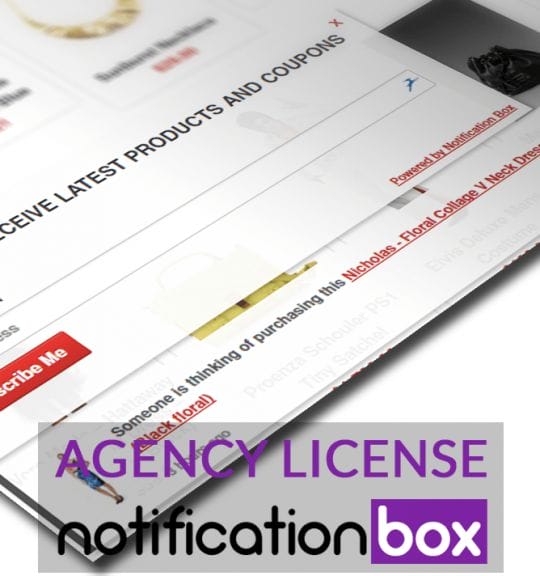
Agency License – Notification Box – WordPress Plugin
Original price was: $230.00.$150.00Current price is: $150.00. Add to cart -
Sale!
Unlimited License – Notification Box Pro – WordPress Plugin
Original price was: $79.00.$60.00Current price is: $60.00. Add to cart -
Single License – Notification Box Pro – WordPress Plugin
$39.00 Add to cart
Products
-
Notification Box Lifetime Deal Package
Original price was: $278.00.$160.00Current price is: $160.00.
-
Extension - Cookie Close Notification Box
$19.00
-
Extension - Notification Box Newsletter
$29.00
-
Agency License - Notification Box - WordPress Plugin
Original price was: $230.00.$150.00Current price is: $150.00.
-
Unlimited License - Notification Box Pro - WordPress Plugin
Original price was: $79.00.$60.00Current price is: $60.00.